comark-annotate
Mark up screenshots in Markdown with hand-drawn marks, numbered notes, arrows, and before/after comparisons.
::compare
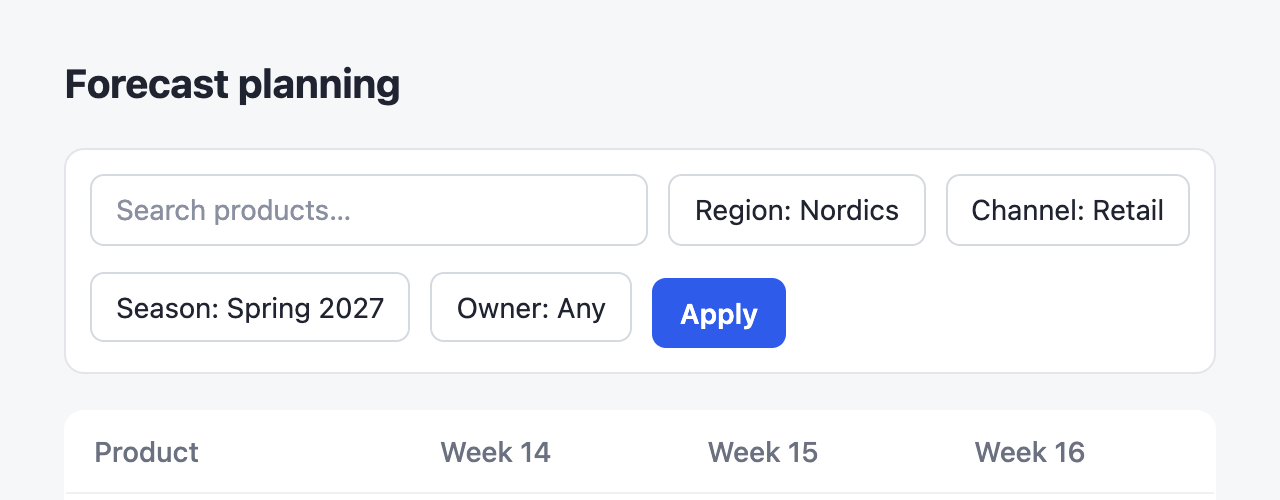
:::screenshot{src="/before.png" alt="Filter toolbar wrapping onto a second row" viewport="640x250"}
::::annotation{x=5 y=29.6 w=90 h=45.3}
Five filters don't fit, so the toolbar wraps and pushes the table down.
::::

::::annotation{x=50.9 y=55.4 w=10.5 h=14.2 mark="circle"}
**Apply** sits 6px lower than the chips.
::::
:::

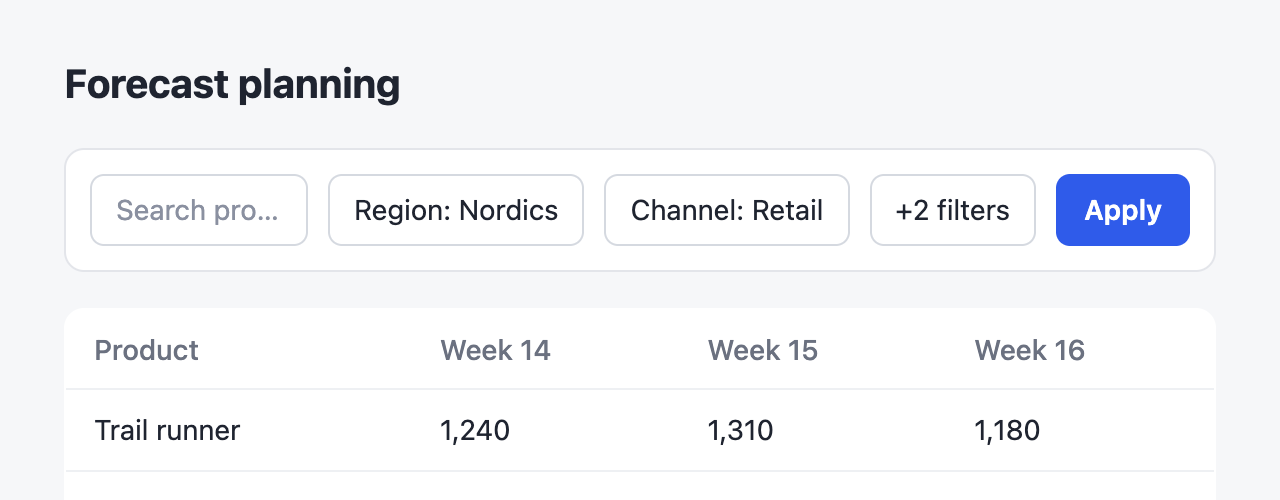
:::screenshot{src="/after.png" alt="Filter toolbar on one row" viewport="640x250"}
::::annotation{x=67.9 y=34.8 w=13 h=14.2 mark="highlight" color="blue"}
Extra filters collapse into **+2 filters**.
::::

::::annotation{x=82.5 y=34.8 w=10.5 h=14.2 mark="check" color="green"}
**Apply** lines up with the chips.
::::
:::
::
- 1Notes without a
sidestay in the list. Apply waits until every filter is set.
::screenshot{src="/dashboard.png" alt="Forecast planning dashboard"}
:::annotation{x=37.6 y=31.9 w=11.9 h=3.3 mark="underline" side="left"}
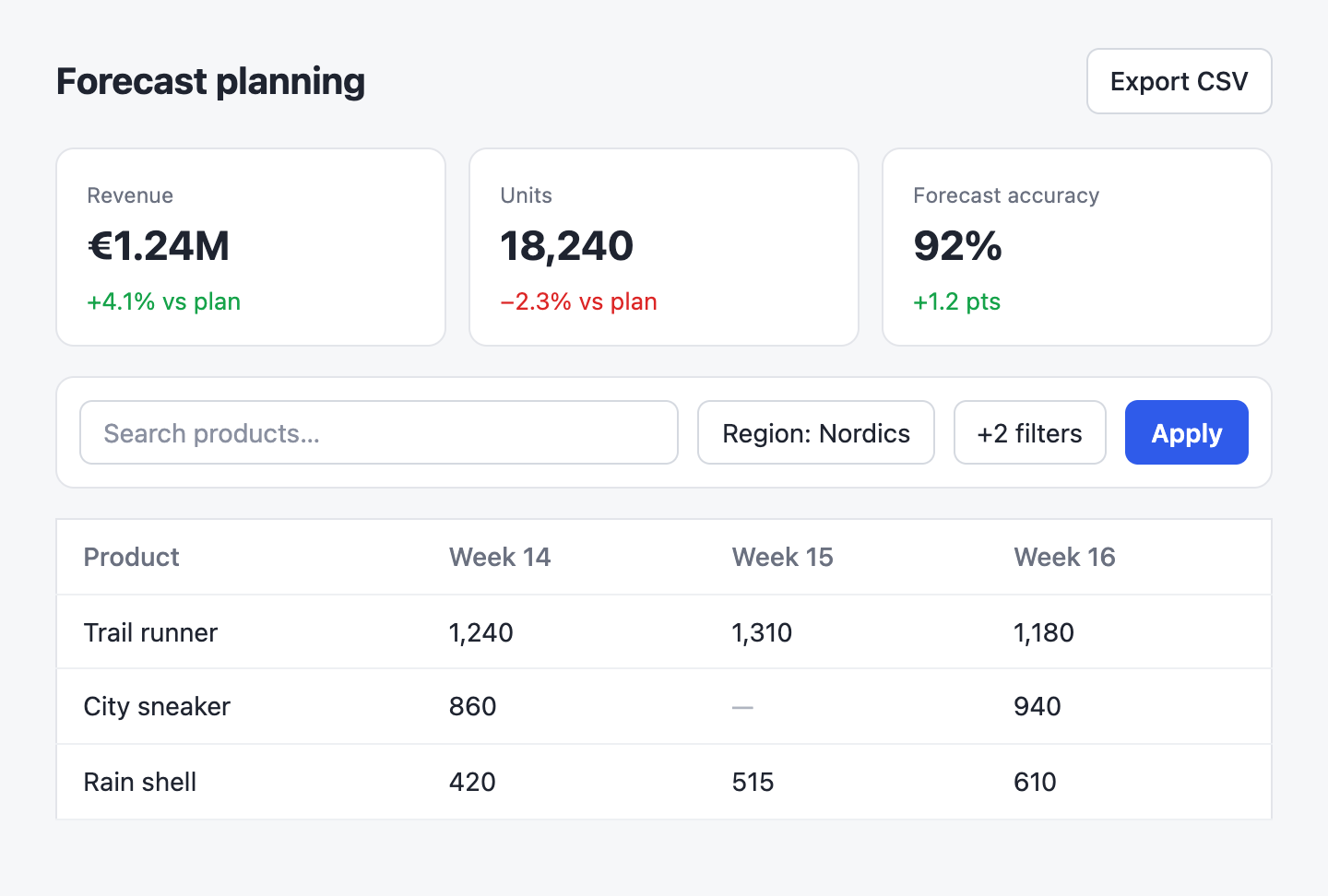
Units fall below plan for the first time this quarter.
:::

:::annotation{x=66.4 y=16.4 w=29.4 h=22.2 side="right"}
Accuracy now counts returns.
:::

:::annotation{x=53.1 y=74.7 w=21.2 h=8.4 mark="highlight" side="left" color="amber"}
Week 15 is missing for City sneaker.
:::

:::annotation{x=84.7 y=44.6 w=9.3 h=7.3 mark="circle"}
Notes without a `side` stay in the list. **Apply** waits until every filter is set.
:::
::::screenshot{src="/dashboard.png" alt="Forecast planning dashboard"}
:::annotation{x=81.8 y=5.3 w=14.1 h=7.3}
`box` frames an element.
:::
:::annotation{x=37.6 y=31.9 w=11.9 h=3.3 mark="circle"}
`circle` rings a small detail.
:::
:::annotation{x=4.2 y=6.1 w=23.4 h=5.8 mark="underline" color="blue"}
`underline` marks text.
:::
:::annotation{x=53.1 y=74.7 w=21.2 h=8.4 mark="highlight" color="amber"}
`highlight` washes over an area.
:::
:::annotation{x=6 y=44.6 w=45.2 h=7.3 mark="cross"}
`cross` strikes something out.
:::
:::annotation{x=84.7 y=44.6 w=9.3 h=7.3 mark="check" color="green"}
`check` approves and sits beside its target.
:::
::Hover a mark or a note to highlight the other. The output is plain HTML and CSS with no script, so a saved copy looks the same years later.
Usage
Register the plugin and pass the HTML renderers as components:
import { createHtmlRenderer } from "@comark/html";
import annotate, { components } from "comark-annotate/html";

const render = createHtmlRenderer({ plugins: [annotate()], components });
const html = await render(markdown);
The renderer inlines its styles once per document and scopes them under .ca. Set --ca-color to change the default mark color.
Components
screenshot
An image with marks on it. Other content inside the block becomes the caption.
- 1Extra filters collapse into +2 filters.
::screenshot{src="/after.png" alt="Filter toolbar on one row" label="After" url="https://pr42.preview.example.com/plan"}
:::annotation{x=67.9 y=34.8 w=13 h=14.2}
Extra filters collapse into **+2 filters**.
:::
::| Prop | |
|---|---|
src |
Image URL. Required. |
alt |
What the screenshot shows. Required. |
label |
Heading above the notes. |
url |
The page you captured, shown as a link. |
viewport |
Capture size, like 1440x900. A compare checks that both sides match. |
annotation
A mark on the screenshot and its note. The content is the note. Notes in the list under the image are numbered. Side notes sit beside the image and point with an arrow instead.
- 1Export CSV includes the filters you set.
::screenshot{src="/dashboard.png" alt="Forecast planning dashboard"}
:::annotation{x=81.8 y=5.3 w=14.1 h=7.3 color="blue"}
**Export CSV** includes the filters you set.
:::

:::annotation{x=66.4 y=16.4 w=29.4 h=22.2 side="right" color="green"}
Accuracy now counts returns.
:::
::| Prop | |
|---|---|
x y w h |
The marked area, as percentages of the image from 0 to 100. |
mark |
box (default), circle, underline, highlight, cross, or check. |
side |
left or right puts the note beside the image with an arrow. |
color |
red (default) for a problem, amber for a warning, green for a fix, blue for information, gray for neutral. Each has a dark-mode value. Any hex color works too. |
compare
Two screenshots side by side, labelled Before and After unless they set their own label. Numbers continue from one side to the other, and the pair stacks on narrow screens.
::compare
:::screenshot{src="/before.png" alt="Toolbar wrapping" viewport="640x250"}
::::annotation{x=50.9 y=55.4 w=10.5 h=14.2 mark="circle"}
**Apply** sits lower than the chips.
::::
:::

:::screenshot{src="/after.png" alt="Toolbar on one row" viewport="640x250"}
::::annotation{x=82.5 y=34.8 w=10.5 h=14.2 mark="check" color="green"}
Fixed.
::::
:::
::
Guides
Side notes
side="left" or side="right" moves a note out of the list and next to the image, with a hand-drawn arrow to its mark. Side notes have no number because the arrow links them. On narrow screens they drop under the image with a bar in their color, and the arrows hide.
Notes on the same side need room. When two would overlap, the plugin reports it. Move one to the other side or leave it in the list.
Placing marks
Measure the element in the page you captured and divide by the viewport. Don't estimate from the image.
const r = element.getBoundingClientRect();
const box = {
  x: (r.x / innerWidth) * 100,
  y: (r.y / innerHeight) * 100,
  w: (r.width / innerWidth) * 100,
  h: (r.height / innerHeight) * 100,
};
For a full-page screenshot, add the scroll offset and divide by the page size instead.
Validation
The plugin checks every block while parsing and lists the problems in meta.annotateIssues, so you can reject a document before publishing it.
import { parseMarkdown } from "comark";
import annotate from "comark-annotate";

const { meta } = await parseMarkdown(markdown, { plugins: [annotate()] });
if (meta.annotateIssues.length) throw new Error(meta.annotateIssues.join("\n"));
Each issue names its block and says how to fix it:
screenshot "after.png", annotation 2: the box runs past the image edge (x + w and y + h must stay within 100).Rendering never throws.
Credits
Comark, by the Comark team, does the hard part: the parser, the component syntax, and the HTML renderer this plugin builds on. The hand-drawn marks come from AnnotationKit.